
Choose storage before downloading
Open Settings → Local models. Under Model storage on this computer, choose a writable folder on a local drive with enough free space. A secondary local drive is supported.
Choose the location before setting up the runtime or starting model downloads. This release does not automatically move an existing library to a new location.
Ollama’s public model downloads do not require an Ollama account. Individual model license terms still apply. Hugging Face imports are deferred while the supported workflow is being qualified.
Pick a model for this computer
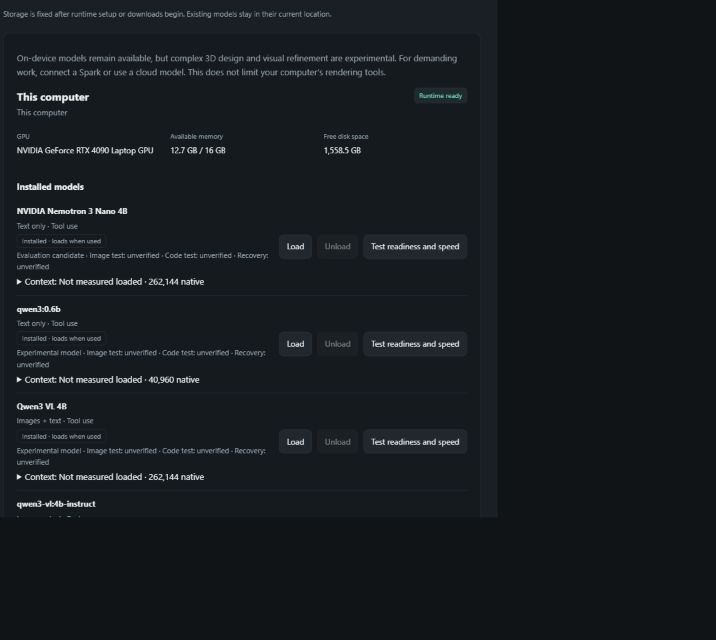
Review the hardware and free-storage measurements in Settings. In Local agent models, select the target device and use case.
Choose an image-and-tool-capable model for visual scene work. A text-only model cannot inspect render pixels. NVIDIA Nano 4B and 30B are text-only; NVIDIA Nano Omni is image-capable. Model sizes, memory estimates and actual behavior differ.
Start with the evaluation shortlist. Broader Ollama choices are explicitly experimental. The app considers available memory and a reserve, but fitting a model in memory does not prove that it can finish an experiment. Small laptop models are particularly limited for complex 3D design.
Connect directly to a Spark
Put the Windows computer and Spark on the same reachable network. The Spark needs SSH enabled, an SSH account you are authorized to use, and enough free disk space and memory. NVIDIA Sync is optional.
- Open the direct connection controls.
Go to Settings → Local models → Connect Spark directly.
- Enter your Spark connection details.
Use its hostname or local IP address, your SSH username and the SSH port, commonly
22. Choose password or private-key authentication. - Confirm the host identity.
Review the identity when prompted. A changed identity requires review rather than silent trust. Saved authentication uses operating-system encryption.
- Choose automatic reconnection if wanted.
Keep Connect automatically when this Spark is reachable selected to reconnect using the saved trusted identity. Being on the same network does not bypass authentication or host-key verification.
- Install on Spark.
Choose Spark as the installation device. PhaseForge sets up the supported ARM64 runtime remotely and downloads weights on the Spark. Follow the visible operation progress.
Load a model and select it in chat
- Installed
- The model weights are on disk.
- Loaded in memory
- The inference runtime currently has the model resident.
Use Load, Unload or Test readiness and speed in Settings. Unload frees inference memory and retains downloaded weights. Readiness sends a short answer/tool probe; it is not a complete code or rendering acceptance test.
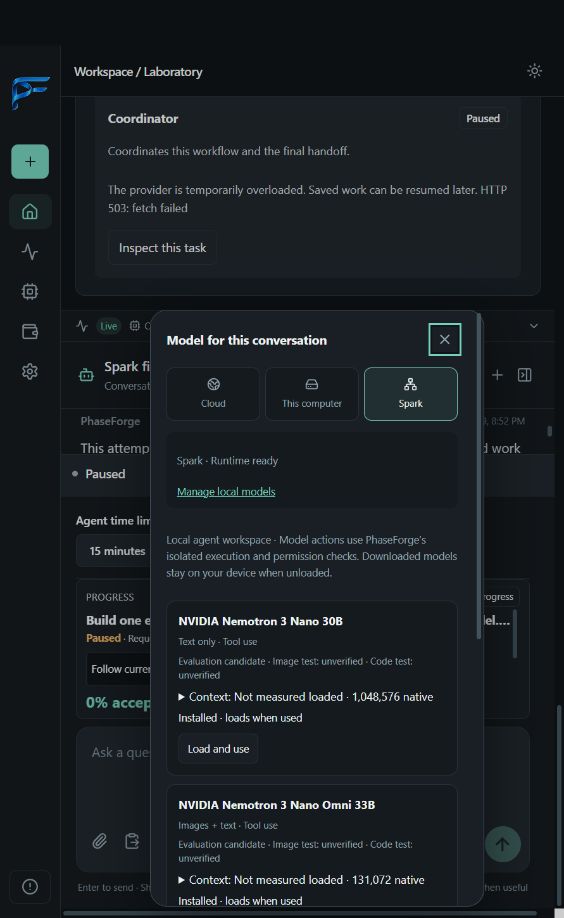
- In a project’s chat, open the single model picker.
- Choose Cloud, This computer or Spark, then select an installed model for a device.
- For device models, use Load and use or Use in this chat when offered.
- Check the selected device/model and memory state beside the composer.
A connected Spark and ready runtime are required for remote inference. Changes apply to new requests; they do not silently switch an already-running task to a different provider.
Render tools and internet assets
Blender is a separately installed optional engine. The new generated Blender workflow uses the supported exact Blender 4.5.9 runtime under the Windows sandbox.
Assets download when you need them
When online, PhaseForge automatically retrieves suitable public catalog data for supported scene requests: HDR lighting/skies, PBR textures, bounded glTF props and fitted human asset data. Assets download on demand rather than expanding the app installer.
The first human asset pack is about 268 MiB and needs additional working disk space. Source, license and file hashes are retained. Core human presets currently cover light-skinned adults and children; they are not a general human-appearance generator.
Keep the output that fits your use
Offline, available cached inputs and procedural fallbacks may produce a simpler result. No catalog guarantees photorealism. The saved PNG uses Blender lighting; the portable interactive GLB can look different because its supported material and lighting features differ. Keep the editable BLEND for full scene fidelity.
Troubleshooting and updates
Installed, but not loaded
Choose Load or send a request after selecting that model. Watch the memory status.
Spark is unavailable
Verify network reachability, your SSH account, the saved identity and runtime status in Settings. Do not discard healthy partial model downloads.
The model plans but never executes, repeats malformed code or produces poor images
Preserve the failed task’s evidence. Try a simpler bounded request or an explicitly selected cloud model. Repeatedly extending the same failed request may not help.
The render scene is empty
Select a retained output in Studio. This release adds recovery for stale scene selections and direct opening of generated Blender results.
An update is available
Approve the Marketplace-accepted update using the sidebar control. The updater verifies installer identity and backs up project/profile data before installation. Keep sufficient disk space. Older project data is not deliberately deleted during upgrade; backup or validation failure blocks installation.